
Table of Contents
Teaching becomes more exciting when students enjoy learning. That is why many teachers use gimkit host to turn normal quizzes into fun classroom games. Instead of answering questions on paper, students join a live game and earn rewards for correct answers. This keeps everyone active and interested.
Gimkit is an online quiz platform that mixes learning with games. Teachers can create their own question sets or use ready-made ones. Then they can host a game, invite students with a game code, and watch everyone play together. Whether you teach a small class or a large group, Gimkit makes learning simple, interactive, and enjoyable.
What Is a Gimkit Host?
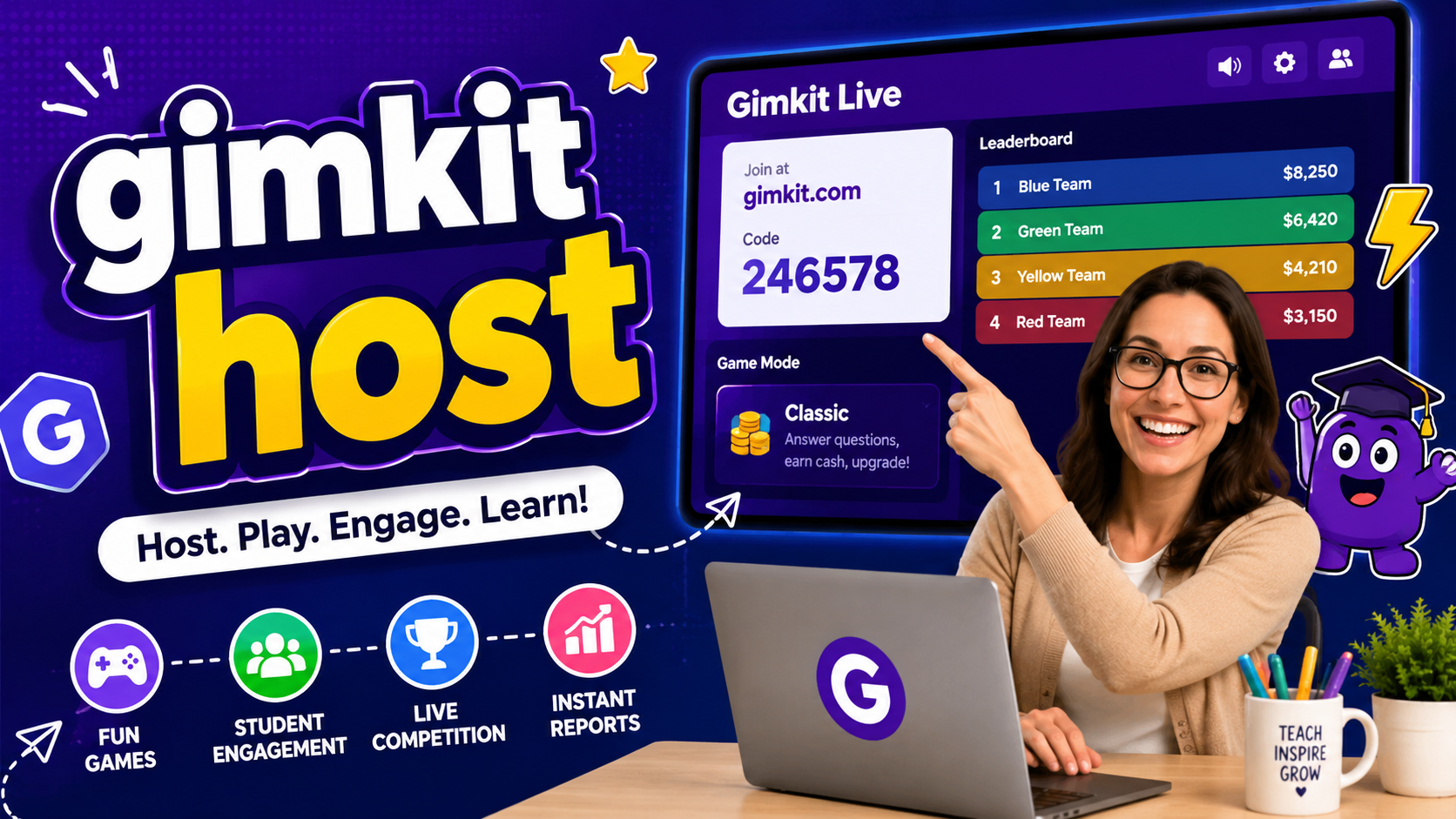
A gimkit host is the person who starts and controls a live Gimkit game. This is usually a teacher, tutor, trainer, or group leader. The host chooses the questions, selects the game mode, changes the settings, and starts the game.
The host also watches the game while students play. They can see scores, pause the game if needed, and review reports after the game ends. These reports help teachers understand which topics students know well and which topics need more practice.
Being the host is easy, even for beginners. Once you learn the basic steps, you can create exciting learning activities in only a few minutes.
Why Use Gimkit in the Classroom?
Gimkit is much more than a simple quiz platform. It turns learning into an exciting classroom game that students enjoy.
Students stay focused because they earn virtual money, unlock upgrades, and compete with classmates while answering questions correctly. This friendly competition keeps learners motivated throughout the lesson.
Teachers also benefit because the platform saves time. Instead of checking every answer by hand, Gimkit automatically records scores and creates useful reports. This allows teachers to spend more time helping students instead of grading papers.
Another great benefit is flexibility. Gimkit works for science, math, history, languages, vocabulary, geography, and many other school subjects. It can also be used for homework or live classroom activities.
How to Host a Gimkit Game (Step-by-Step)
Create Your Account
Visit the Gimkit website and create a free account using your email address. After signing in, you will reach your dashboard where all your games and question kits are stored.
The free version lets you begin quickly, while paid plans unlock additional game modes and classroom features. New users can start with the free option before deciding whether they need more tools.
Choose or Create a Kit
A Kit is the collection of questions students will answer.
You can:
- Create your own questions
- Import questions from another file
- Copy a public Kit
- Edit an existing Kit
Creating your own Kit allows you to match the questions to your lesson and learning goals.
Click Host
After selecting your Kit, click the Host or Play Live button.
This opens the hosting screen where you prepare everything before students join the game.
Select a Game Mode
One reason teachers enjoy Gimkit live sessions is the variety of game modes.
Popular choices include:
- Classic
- Snowbrawl
- Fishtopia
- Trust No One
- Blastball
- Don’t Look Down
Each mode changes how students play while keeping the learning questions the same.
Classic mode is often the best choice for beginners because it is simple and easy to understand.
Adjust Game Settings
Before starting the classroom game, review your settings carefully.
You can change:
- Time limit
- Winning goal
- Late joining
- Music and sounds
- Power-ups
- Nickname options
- Team settings
Small changes can make the activity better for different age groups and classroom sizes.
Share the Game Code
When everything is ready, Gimkit creates a unique game code.
Students simply:
- Open Gimkit on their device.
- Enter the game code.
- Type their nickname.
- Join the lobby.
After everyone joins, click Start Game and begin the session.
Best Features of Gimkit Live
Teachers enjoy hosting because Gimkit includes many useful tools.
Some popular features include:
- Live score tracking
- Instant feedback
- Multiple game modes
- Team competitions
- Homework assignments
- Automatic reports
- Easy classroom management
These features help create a more exciting learning experience without adding extra work for teachers.
Benefits for Teachers and Students
Using Gimkit offers advantages for everyone in the classroom.
Teachers can quickly check student understanding, identify learning gaps, and review detailed reports after every game. This helps improve future lessons.
Students enjoy learning because the activities feel like games instead of tests. Friendly competition, rewards, and colorful gameplay encourage participation and improve student engagement.
Even shy students often become more active because the game feels fun and less stressful than traditional quizzes.
Common Problems When Hosting
Game Not Starting
Sometimes the game does not begin even after clicking Start.
Possible solutions:
- Check your internet connection.
- Refresh the page.
- Make sure your Kit is loaded correctly.
- Restart the hosting session if needed.
- Try another browser if the problem continues.
Students Can’t Join
If students cannot enter the game, do not worry.
Try these steps:
- Check that the game code is correct.
- Make sure students entered every number correctly.
- Confirm the game has not already ended.
- Verify everyone is joining the correct Gimkit live session.
- Ask students to refresh their browser.
Lag or Slow Game
Large classes or weak internet connections may cause slow performance.
To improve speed:
- Close unnecessary browser tabs.
- Use a stable internet connection.
- Reduce background downloads.
- Switch to a simpler game mode.
- Restart the game if necessary.
Tips for Better Hosting
Make It Fun
Use different game modes throughout the school year. Students enjoy variety, and changing activities helps keep every lesson fresh and exciting.
You can also match game modes with different subjects to make lessons feel unique.
Keep Students Engaged
Offer small classroom rewards such as stickers, extra points, or simple certificates.
Friendly competition encourages students to participate without making learning stressful.
You can also let students work in teams for extra collaboration.
Test Before Class
Run a short practice session before students arrive.
Testing everything first helps you check:
- Internet connection
- Question accuracy
- Game settings
- Audio
- Join code
This small step prevents delays during class.
Conclusion
Hosting a Gimkit game is one of the easiest ways to make classroom learning more interactive and enjoyable. With only a few simple steps, teachers can create exciting quizzes, track student progress, and build a positive learning environment where everyone wants to participate.
Whether you are teaching a small group or a large classroom, Gimkit gives you the tools to create memorable lessons. Try different game modes, experiment with new Kits, and use the reports after each session to help students improve while having fun.
FAQs
Q: What is Gimkit host?
A: It is the person who creates, manages, and controls a live Gimkit game.
Q: Is Gimkit free?
A: Yes. Gimkit offers a free version with basic hosting features, while paid plans include additional options.
Q: Can students host games?
A: Yes. Students with their own accounts can host games if they have permission and the required features.
Q: How many players can join?
A: Gimkit supports large groups, making it suitable for classrooms and school events. The exact limit depends on the plan and game mode.
Q: Do I need an account?
A: Yes. The host needs a Gimkit account to create and manage games. Students can usually join using only the game code.
Q: Can I use it on mobile?
A: Yes. Gimkit works on phones, tablets, Chromebooks, laptops, and desktop computers through a web browser.